This help page is only available in English.
Organizations can set up a Microsoft Entra SSO for LearningStone and fill in the table in Step 5, below. LearningStone Support can then configure the OpenID module in LearningStone. From then on: users can log in with their organizational Microsoft credentials. If they try to login with email + password, LearningStone will redirect the user to the official login of the organization.
How the login works and how to test
If a member logs in with an email address with a domain that is configured as Open ID domain, then LearningStone will redirect to the organization for the member to log in there. If the member logs in and there was no account yet, it is automatically created. Members need to be invited to be able to join a groupspace. Members that login with an Microsoft Entra account, cannot change their email addresses in LearningStone.
Note: The “Login with Microsoft” is for Hotmail and Outlook.com and for organizational domains without Entra connection. If the Entra users choose this button, they will be reminded that it is quicker to start by filling in their email address.
How to test
Go login at https://www.learningstone.com/logon and use an email account from the organization. A button appears to log in at the organization and - after logging in - an account is created. You can also invite a new member by adding them in “Organize members” in a LearningStone groupspace.
How to invite members
Go to “Organize members” and click on “+Member” or use the “Invite many named members” to send an invitation email. Add this to your invitation text: “Sign up and log in using your organizational email. Enter your email address and a button will appear to log in.”
How to configure Microsoft Entra
To set up LearningStone as an OpenID Connect (OIDC) provider within your Microsoft Entra environment, you essentially need to register LearningStone as an App Registration.
This allows Entra to act as the "Identity Provider" (IdP) so that when users try to login in LearningStone, Entra recognizes the request and logs them in.
Here is the exact workflow in the Microsoft Entra admin center.
1. Create the App Registration
- Sign in to the Microsoft Entra admin center.
- Go to App registrations in the left menu (if returning, click on “Alle applications”)
- Select + New registration.
- Name: Enter something recognizable, like LearningStone SSO.
- Supported account types: Select Single tenant only / Accounts in this organizational directory only (unless you want other companies to use your app registration, then choose Multitenant).
- Redirect URI: * Select Web from the dropdown.
- Enter the URL provided by LearningStone which is: https://www.learningstone.com/oauth-service/redirect
- Click Register.
Note: if you return to App Registrations, click on “All applications” if needed to find your app. You might need to reload a page before a registration is displayed.
2. Generate Credentials (Client Secret)
LearningStone needs a "password" to talk to Entra. Don’t forget step 4!
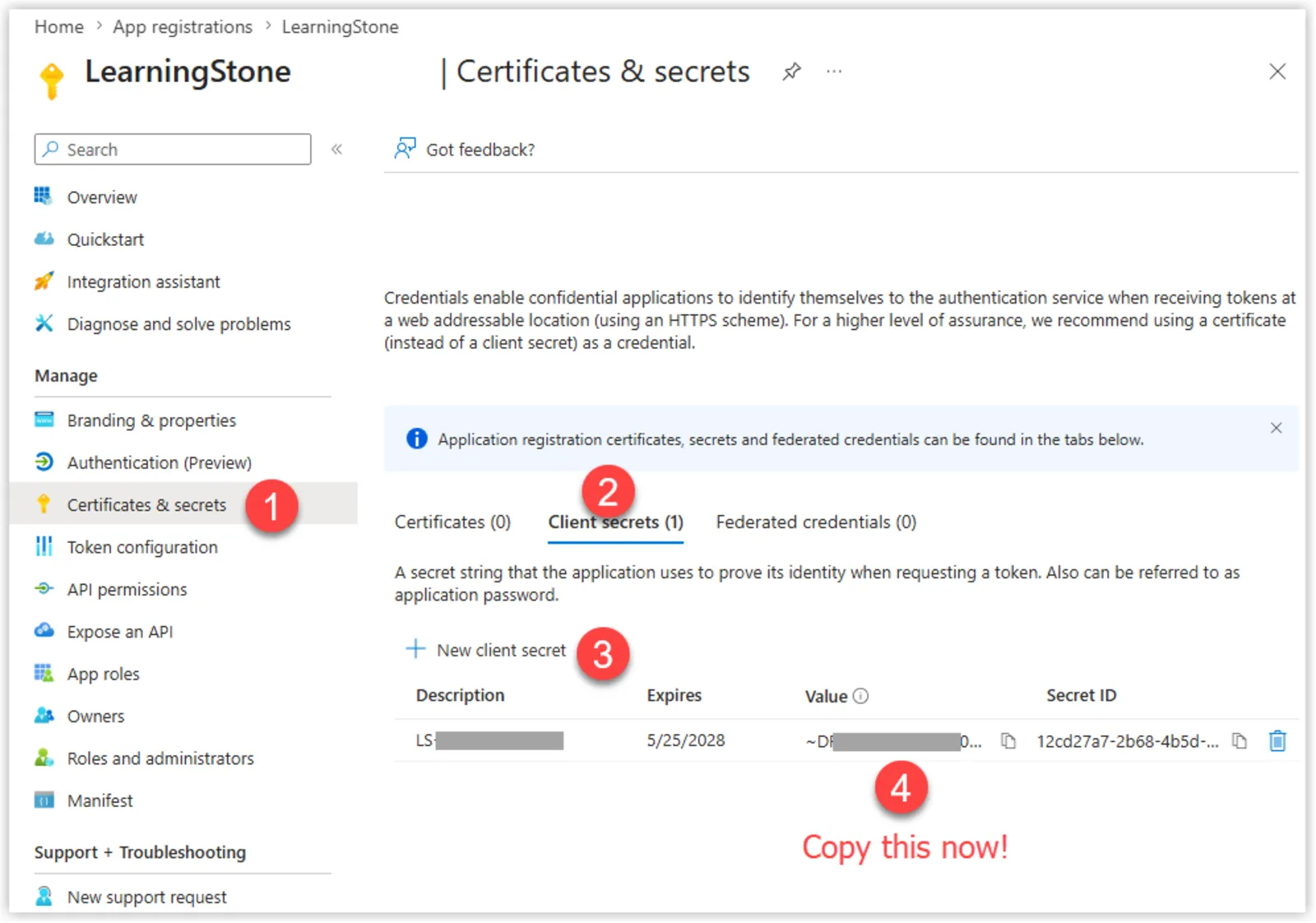
- In your new app registration, go to Certificates & secrets in the left menu.
- Select + New client secret.
- Add a description (e.g., LearningStone Secret) and set the expiration: 730 days.
- IMPORTANT: Copy the Value You will not be able to see it again after you leave this page. (ignore the Secret ID; you need the Value).
3. Configure Permissions
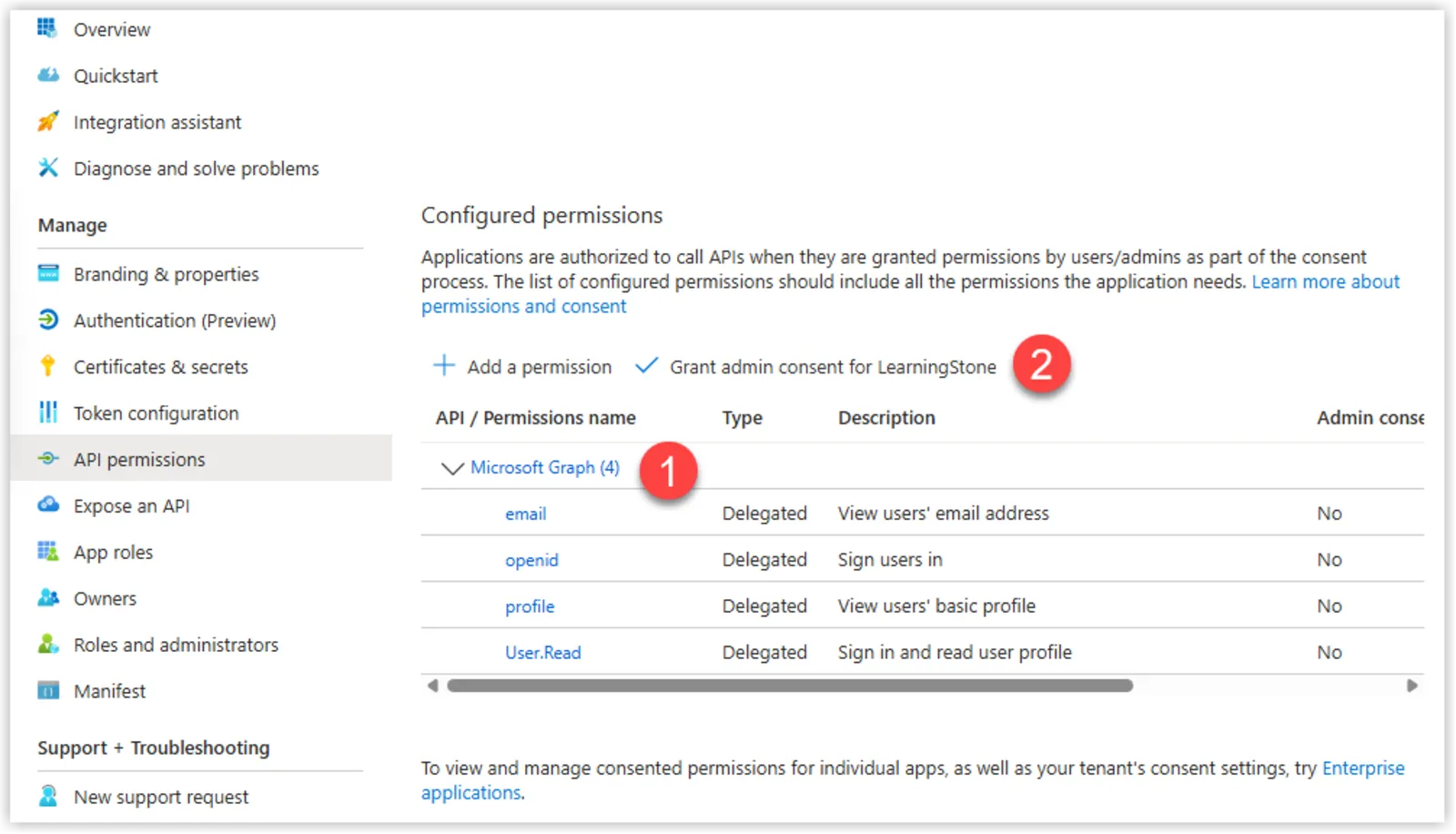
- Go to API permissions in the left menu of the registration.
By default, User.Read is usually there. Click on Microsoft Graph and choose the following delegated permissions for Microsoft Graph are present
Email- openid
- profile
- Read
- Click Grant admin consent for [Your Company] to ensure users aren't prompted to "accept" the app individually. Do not forget this step!

4. Logo and links
Choose “Branding & properties” in the menu of the App registrations to upload the logo (215x215) and fill in the links for the home page, terms and privacy.
https://ww.learningstone.com
https://www.learningstone.com/terms
https://www.learningstone.com/privacy
5. Gather Information for LearningStone
Now, go to the Overview page of your app registration (at the top of the left menu). You need to copy four pieces of data to paste into the LearningStone settings:
|
Information for Entra config at LearningStone |
|
|
Organization details Organization Name Date |
|
|
Information from Entra |
|
|
A1. The Secret Value (not ID) DO NOT EMAIL, SEND DIRECTLY VIA A TEXT MESSAGE |
|
|
A2. Expiration date |
|
|
B. Display name |
|
|
C. Application (client) ID |
|
|
D. Directory (tenant) ID |
|
|
E. Endpoints > OpenID Connect metadata document (scroll down!) The .well-known endpoint URL which looks like this: https://login.microsoftonline.com/123456789/v2.0/.well-known/openid-configuration |
|
|
F. Organization email domain The part that comes after @ in the emails. |
6. Add the domain to the antispam allow list (optional)
Usually LearningStone email will arrive without problems. Just to be sure, you can add the domains to your allowlist. This will only let verified email from LearningStone bypass spam filters.
- Go to security.microsoft.com/antispam and click Anti-spam inbound policy (Default).
- Scroll to the bottom of the right panel and click Edit allowed and blocked senders and domains.
- Under Allowed domains, click Allow domains (the + sign).
- Type learningstone.com and members.learningstone.com, add it, click Done, and click Save.
7. Skip this step: Final Step: Enable ID Tokens
- Go to Authentication in the left menu of the app you just created (under Manage)
- Go to Settings and go to the Implicit grant and hybrid flows section.
- Check the box for ID tokens (used for implicit and hybrid flows).
- Click Save.
Trouble shooting
If your users get an error saying "User not assigned to application," make sure you go to Enterprise Applications, find your LearningStone app, and either assign specific users/groups or toggle "Assignment required" to No under Properties.
What to do at LearningStone
(LearningStone Host admin only)
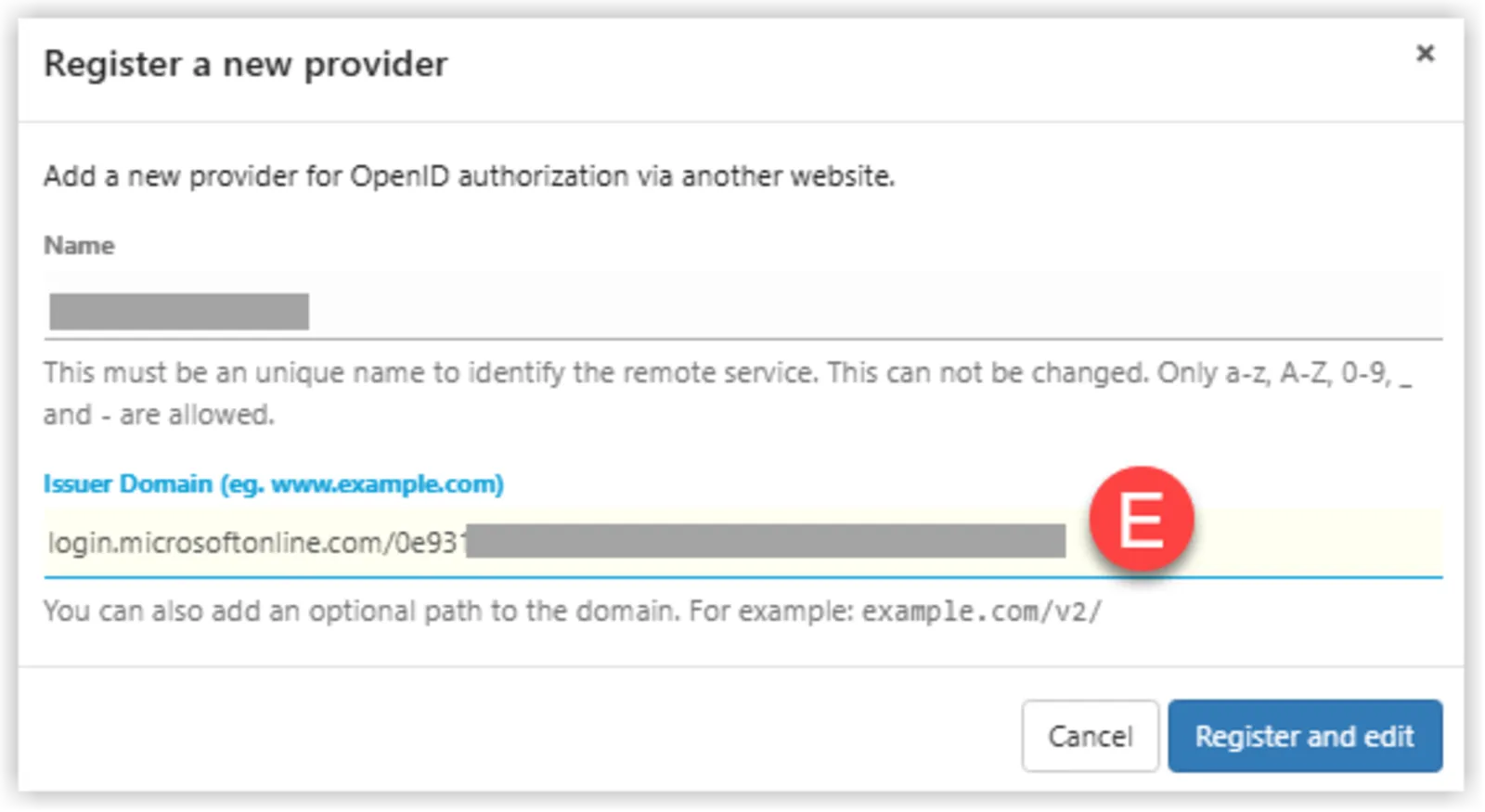
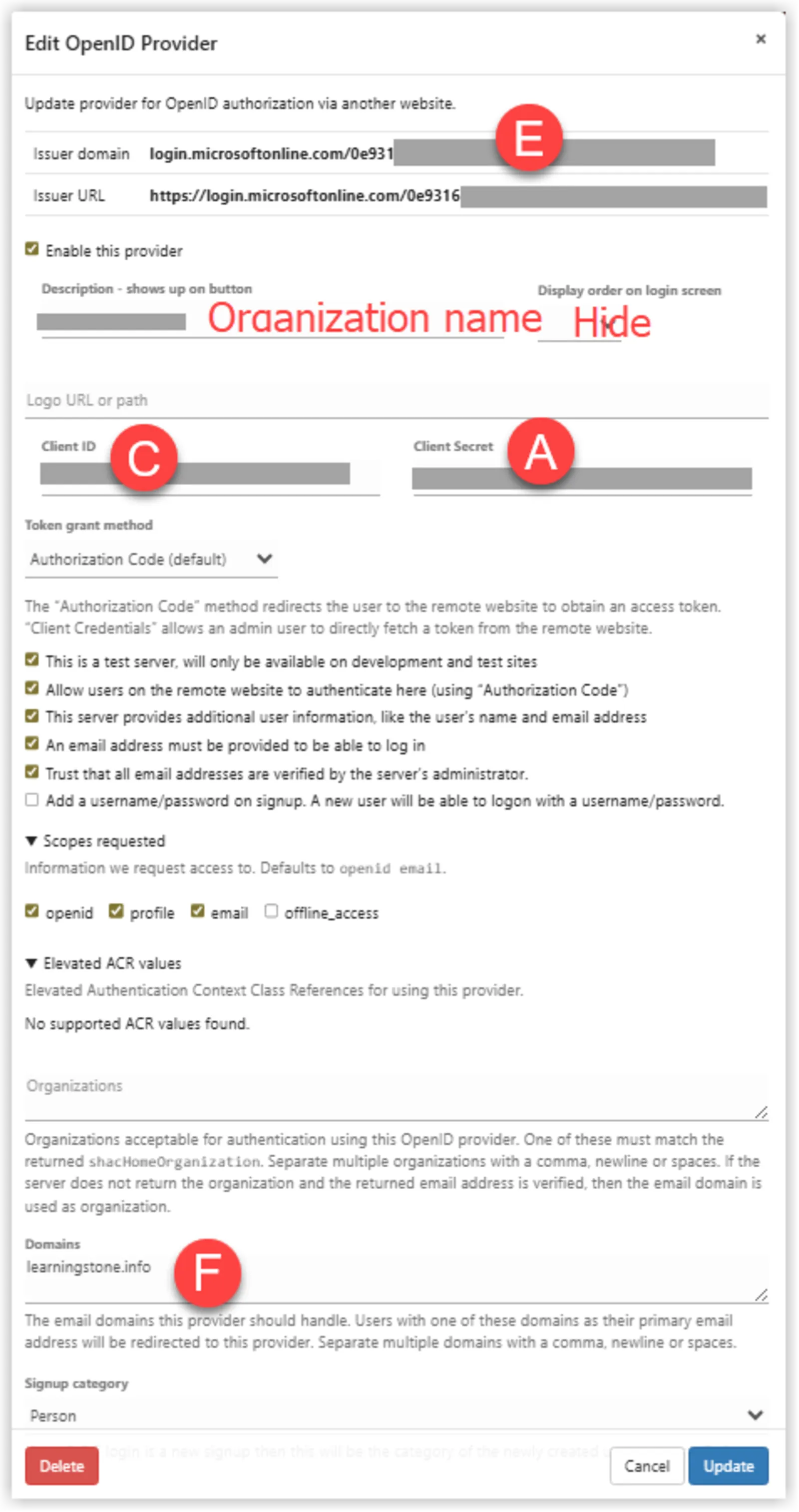
To configure the SSO service for LearningStone powered applications, choose Admin > Auth > Open ID and fill in the values.
|
Information for Entra config at LearningStone |
|
|
Organization details Organization Name Date |
|
|
Information from Entra |
Field in LearningStone |
|
A1. The Secret Value (not ID) DO NOT EMAIL, SEND DIRECTLY VIA A TEXT MESSAGE |
A1. Client Secret |
|
A2. Expiration date |
A2. Not needed for LearningStone, for our reference only |
|
B. Display name |
B. Not needed for LearningStone, for our reference only |
|
C. Application (client) ID |
C. Client ID |
|
D. Directory (tenant) ID |
D. Tenant ID |
|
E. Endpoints > OpenID Connect metadata document (scroll down!) The .well-known endpoint URL which looks like this: https://login.microsoftonline.com/123456789/v2.0/.well-known/openid-configuration
Note to LearningStone admin: (leave end slash) |
E. Issuer domain
|
|
F. Organization email domain The part that comes after @ in the emails. |
F. Domains |