Which languages are available and how do I switch?When a user opens a first page of the platform, we determine what the most likely language is based on location and browser settings. If the right language is not available, the default is English. Users can always switch languages with the “Language” link at the bottom of the page. There are three levels of language. 1. The platform language (menu’s, system messages etc.). Tip: you can also see what language has been chosen in the URL of the page. For example: English: www.learningstone.com/en/ German: www.learningstone.com/de/ Dutch: www.learningstone.com/nl/ French: www.learningstone.com/fr/ Spanish www.learningstone.com/es/ 2.The content in the course timeline can be provided in any language. If a language is not available, we switch to English or if that isn’t available either, we switch to the available language. If you need extra languages, please let us know. 3. Language used by the participants in messages and dialogs (not translated). |
How do I develop multilingual content?When you add course timeline blocks, you set languages (click on “Language” in the block).and add localized content in the language tab that will appear. When the user choses e.g. German for the whole platform, the German block will be shown if available. If there is no German content for a block, it will default to whatever language is available (English first). It is possible to choose a language for a course timeline tab that isn’t available for the whole platform. By doing this, you’ll offer content in a different language than the platform language (see above).
|
Can I add videos in multiple languages?Yes, simply add a text block and then add the video’s to each language tab. If you don’t add the video to the text field itself but as an attachment, it will show in all languages. |
Can I create multilingual forms and surveys?Yes you can. Simply add a language in the settings of the form and you’ll see that all the questions get an extra language tab. So now you must translate all the questions otherwise they will appear empty in the second language. |
How can I automatically translate content with AI?You can either copy a course timeline and translate it, so that you have two versions or create a multilingual version with language tabs in the editor. Go to a course timeline block or a public workspace page and choose the “Language” tab. Choose a language pair (e.g English > Spanish and choose “Automatically” to translate with AI. Translation is handled by the excellent AI translation service DeepL. Be careful with translating all the blocks at the same time or removing a language. Consider making a back-up copy of the course timeline before you start as this is a power tool! |
When do I choose “Overwrite existing texts with new translations”This is an option when you translate a text or block or all blocks. Select it when you are doing your first translation or when you need to remove old translations. It also makes sure that any texts in the target language that have been removed in the original language, are removed in the target language as well. Do not select the overwrite option when you have already reviewed some of the blocks but you need to translate other blocks (e.g. newly added blocks). The reviewed texts will remain untouched. |
How can I review translated text efficiently?Start by translating all the blocks into the target language. You will see a button appear above the translated text “Approve translation” and “Show translated text”. When you approve a translation, the button will disappear so you know you have reviewed it.
|
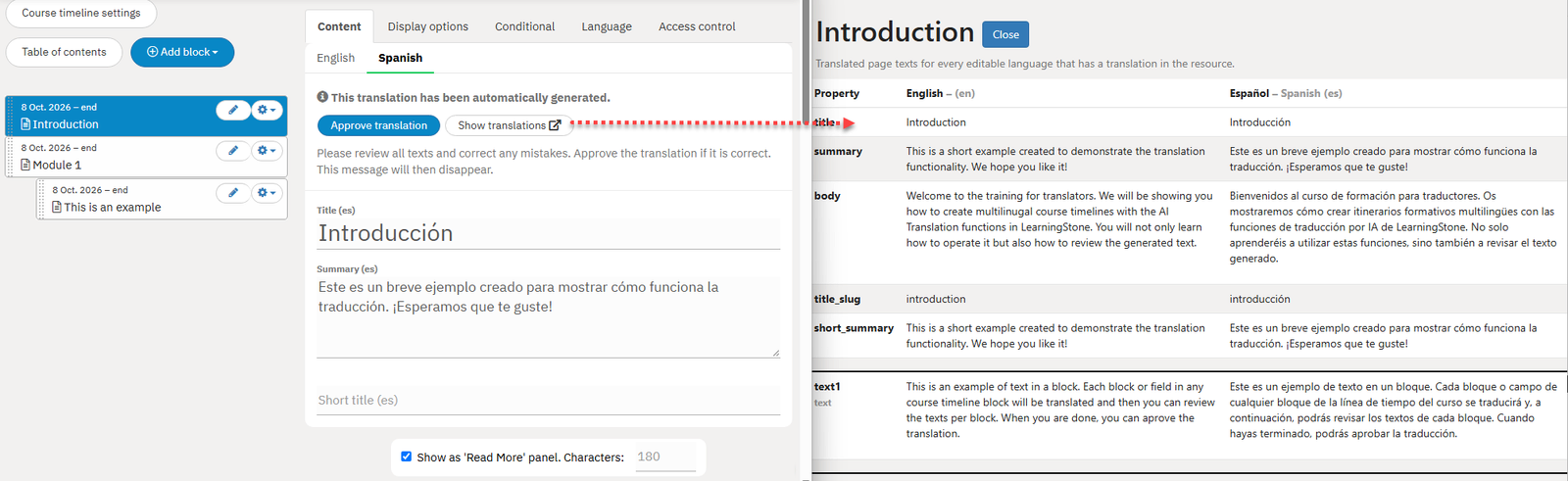
Translate efficiently with side-by-side windows.
Click to zoom