Zum Hauptinhalt springen
Weitere Blogbeiträge

Improved: sign up for groups, coaching sessions and activities

Product news, LearningStone

Tracking participant sign-ups for activities, assignments, or one-to-one coaching sessions might seem like a minor task, but it’s a major time-sink for trainers. When one of our clever LearningStone users - a training company specialized in project management - was looking for a more efficient way of letting trainees sign up for assignments, we redesigned the signup list feature. The result - including the examples we published - makes it easier than ever to add signups directly to your learning path - including single activities like an assignment.

blog-acitivity-EN


Redesigned signup function and free examples to copy

ls-yellow horizontal line LearningStone #fac112.png

Why learner choice and self-scheduling matter

Giving adult learners agency over their own learning schedule is more than just practical convenience - it is backed by research. According to self-determination theory, as elaborated by Deci and Ryan, autonomy is one of the three core psychological needs that drive intrinsic motivation in adult learners. When participants can choose their own time slot or activity, engagement and commitment increase. More recently, Vansteenkiste et al. (2022) confirmed that autonomy-supportive learning environments consistently lead to deeper learning and higher persistence in workplace training contexts. Allowing participants to sign up themselves removes friction, increases ownership, and reduces the administrative burden on the trainer.

Sources:

- Deci, E. L., & Ryan, R. M. (2000). Self-determination theory. Psychological Inquiry.

- Vansteenkiste, M., et al. (2022). Motivational profiles in workplace learning. Journal of Vocational Behavior.

What you can do

Add a signup list to the course timeline

Add an event block to your course timeline and enable the signup option. This places the signup list right where participants are already working - no separate links or emails needed.
Add clear instructions, like what should be done with the results (uploaded to Docs, presented in the class, pasted in a post on the wall etc).


Use it for a single activity

Previously the signup feature was mainly used for time slots. Now you can use it for a single activity with a maximum number of signups, for example a workshop with 25 places.
You can place multiple event blocks in a section, each representing a different activity. Participants sign up for the activity of their choice. A useful example with four activities is available in the Content store (example nr. B.85) and is described below.


See at a glance who has signed up

The redesigned view makes it much easier to see who has signed up. Open the event block and the list is immediately visible - no extra steps. The signup list also appears in the group calendar. You can click the event title to copy the link and share it by email or post it on the wall.


More help on the calendar and signup lists

Try the example in the Content store: Library > Content store > Example nr. B.85
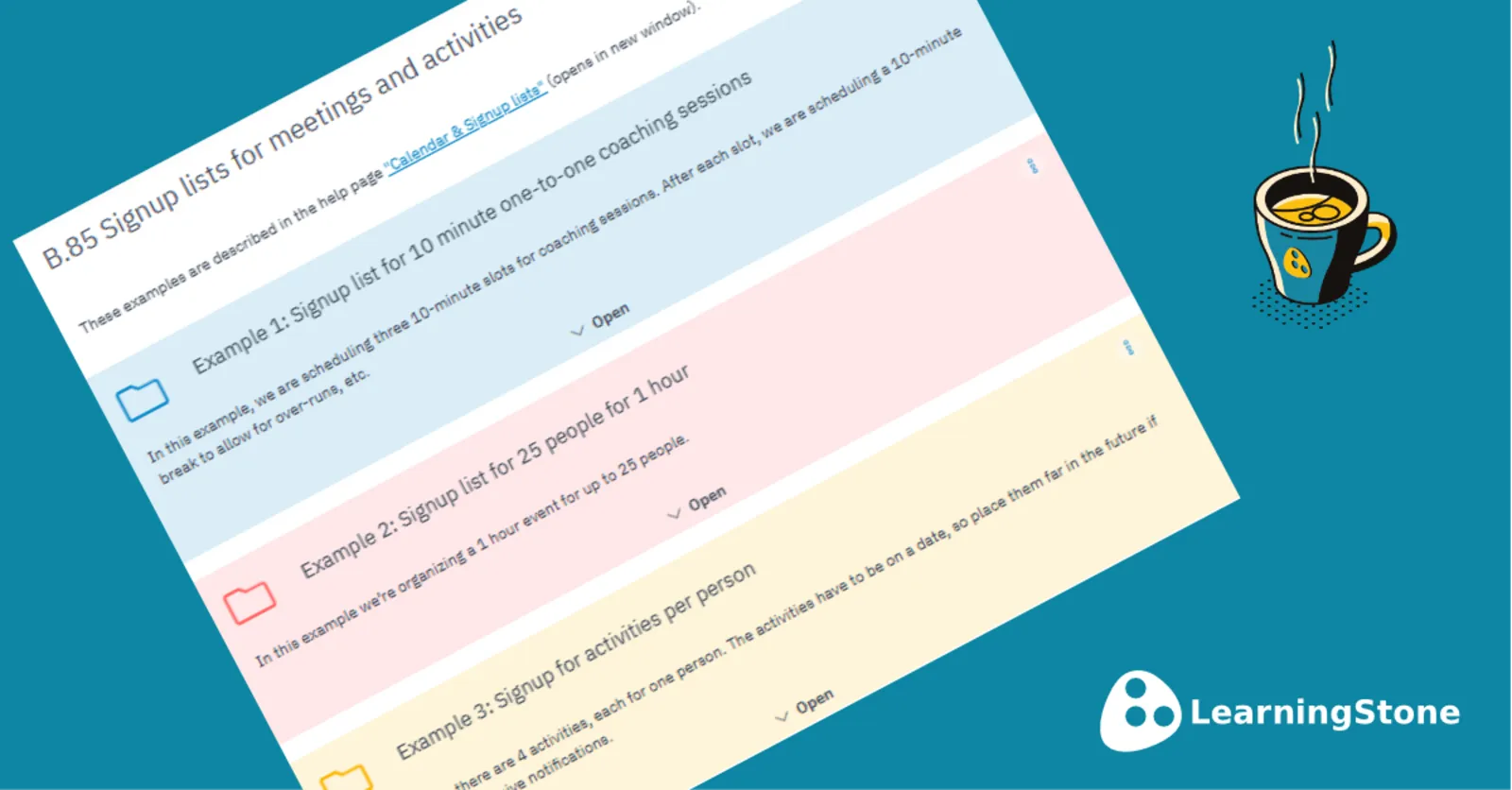
Example: A signup list for four different activities, for four people

In this example, you will add a section containing 4 appointment blocks to the course timeline, each for 1 person.
Copy the example: Library > Content Store > Example Nr. B.85

1.       Enter a time range of 1 hour

First, place one Event-block in the course timeline (it’s often a good idea to put it in a section), and once that’s all set, copy it until you have four and adjust the titles.

Date

e.g. 10-10-2099

The date can remain far in the future, as you’ll only see it in the course timeline and won’t receive any notifications

Title (example):

Activity 1
Activity 2
Activity 3
Activity 4

Description:

A short description of the activity

Who can sign up:

Anyone

Slot Duration:

1 hour

Time isn't really important here.

Max. Signups

1


2. Check signups

Save the appointment and click on it. Give it a go – you can always remove a signup using the – sign, The member will only receive notifications for events that they have signed up for.
If you’ve scheduled the appointment far in the future because the time doesn’t matter, they won’t see it in their calendar.

3. Tell people about the signup list

Group members will receive notifications of calendar events, but you’ll want to ask them to sign up too. In this case, select the three dots next to the section and choose “Copy link” to share via email or post on the wall.


Interessiert an LearningStone Fragen Sie uns nach einer Führung!
Blogs per E-Mail erhalten? Hier anmelden

Read more

Training activity: video as a reflection assignment

Blended learning, Learning design, Tips & How to's

Imagine this: participants creating their own videos about what they’ve learned. Not as homework that gets filed away, but as a powerful learning exercise that encourages reflection, elicits feedback

Lesen Sie mehr über Training activity: video as a reflection assignment

Training activity: how to determine the learning program together

Blended learning, Learning design, Tips & How to's

Trainers who truly involve participants in their own learning process get more out of a training. With LearningStone, you have three powerful features to organize this in advance. And of course, as a…

Lesen Sie mehr über Training activity: how to determine the learning program together

New tutorial: LearningStone course timelines

Are you just starting off with LearningStone course timelines? Please spend a few minutes on our new video tutorial.

Lesen Sie mehr über New tutorial: LearningStone course timelines