More blog posts

New: LearningStone content editing with live view

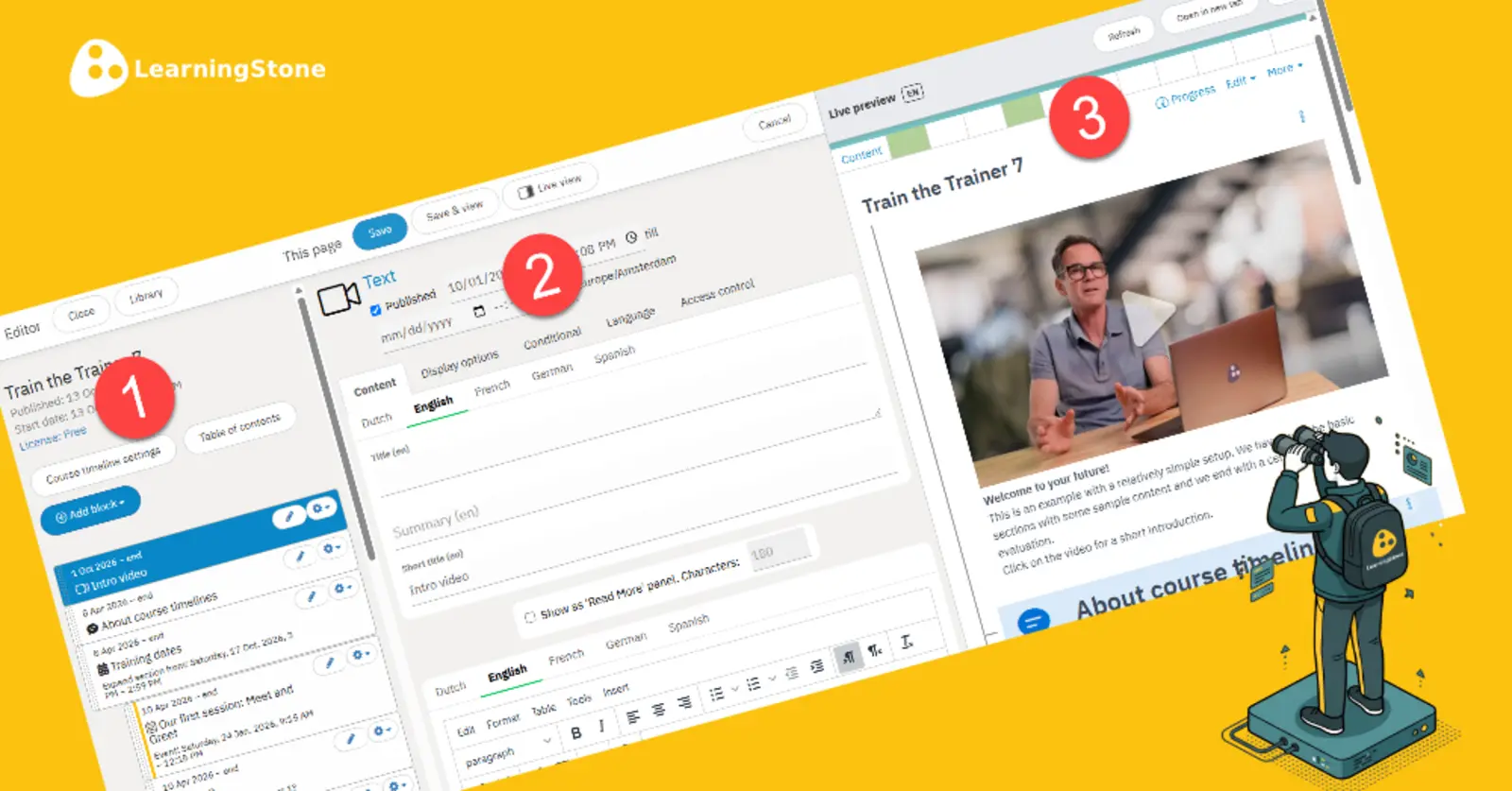
Building a LearningStone course timeline just became a lot easier. With the new live view, you edit a module and see the result right next to it. You don’t have to click back and forth between editing and viewing. It works best on wide screens, where the editor and the live view fit side by side but it will make editing on an average laptop a lot quicker too.

ls live preview ENG

Content editing with Live view

ls-yellow horizontal line LearningStone #fac112.png

This is how it works in 1,2,3


1. Choose a block

Open the course timeline editor and click on the block you want to work on. This can be a text block, an event, a form or any other course timeline block. The block opens in the editor, and the rest of your course timeline stays in view.

2. Edit the block

Change the text, add an image or video, or adjust the design options, just as you are used to. You stay in the same screen, so you keep the overview of where the block sits in your course timeline.

3. Click on “Live view” to save and see the result

Click on “Live view”. Your changes are saved and you immediately see the block the way your participants will see it. Want to change something? Edit again and click once more. No more “Save and view” and searching for the block in the course timeline.

Made for all screens

On a wide screen, the editor and the live view sit next to each other. You can edit, check, adjust and check again in seconds. This saves a lot of time, especially when you are building a long course timeline with many blocks. If you have less space try dragging the sides of each frame (menu, editor, live view) to ajust what you see. 

Bonus: a multilingual grid view

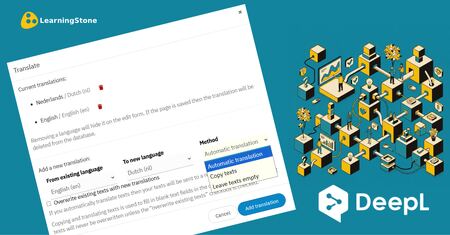
We recently added AI translation to LearningStone. Now we have also added a multilingual grid view for editing. First translate your course timeline, then click on “Show translations”. All languages appear next to each other in a grid - just click to edit!



Interested in LearningStone Ask us for a tour!
Receive blogs per e-mail? Sign up here

Read more

New: Automatically translate learning content using European AI

Tips & How to's, Product news, LearningStone

Do you train international groups? Then you know how much time it takes to translate all your content. Starting now, LearningStone will do that for you thanks to an integration with DeepL, the…

Read more about New: Automatically translate learning content using European AI

Training activity: Didactic coaching - supporting learning between training days

Blended learning, Learning design, Tips & How to's

Trainers who want to make a real impact don't stop when the training day is over. Didactic coaching is a targeted approach in which the trainer stimulates participants' thinking with feedback that…

Read more about Training activity: Didactic coaching - supporting learning between training days

Training activity: End with a bang - wrap up your training in a fun and meaningful way

Blended learning, Learning design, Tips & How to's

The final phase of a training is not just a formality. It is the moment where insights crystallize, commitments are made, and participants get a tangible sense of what they have learned and achieved.

Read more about Training activity: End with a bang - wrap up your training in a fun and meaningful way